
Your Stage Pass can be added to Google Wallet for quick and easy access on ceremony day.
Adding your Stage Pass to your phone helps you keep your pass and important ceremony information in one convenient place.
To view or add your stage pass to Google Wallet through your Tassel account, please follow the steps below:
- Log in to your Tassel account.
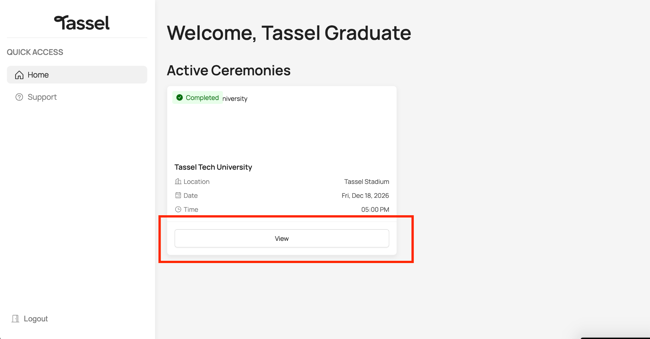
- Under Active Ceremonies, click View.
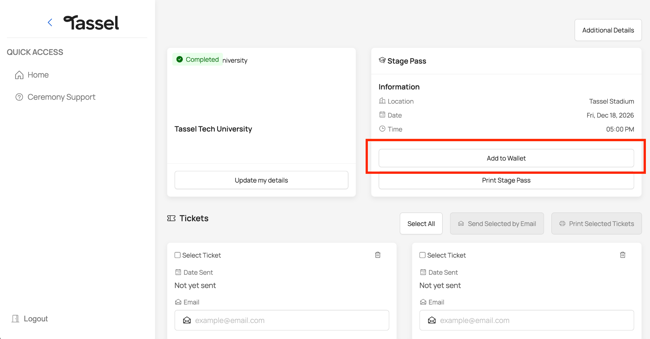
- Under the Stage Pass section, click “Add to Wallet”.
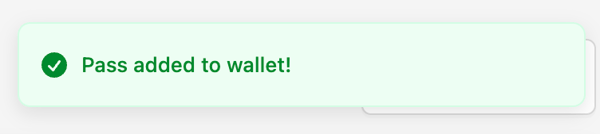
- Once your stage pass has been successfully added, a pop-up confirmation will appear in the upper-right corner of your screen.
- Open your Google Wallet app to view your stage pass.
Having Trouble Adding Your Stage Pass?
If your stage pass isn't added successfully, make sure pop-ups are enabled in your web browser. For additional troubleshooting steps, refer to our article on [Stage Pass Not Showing in Wallet After Adding]
View Your Ceremony Details on Google Wallet
When viewing your Stage Pass in Google Wallet, some additional information provided by your school will not appear directly on the face of the pass.
To view these details:
- Open your Stage Pass in Google Wallet.
- Select the three dots (⋮) in the upper-right corner.
- View the additional details and information provided by your school.
Important: Google Wallet users should check the additional details before ceremony day to make sure they don't miss any important information from their school.
Reminder on Ceremony Day:
- Make sure your Stage Pass has been added to your digital wallet.
- Review any additional information provided by your school.
- Make sure your phone is sufficiently charged.
- Have your Stage Pass ready when lining up to cross the stage.