Overview
Custom Reports allow you to access and analyze data points that are not available in the Standard Reports section.
Creating a New Report
- Initiate Report Creation:
- Click on Create A New Report at the top of the page.
- Step-by-Step Process:
- Step 1: Name the report.
- Step 2: Choose a population for your custom report:
- All Graduates: Create reports using data that applies to all graduates.
- Specific Ceremony: Create reports specific to each individual ceremony registration form.
- If Specific Ceremony is selected, you will need to choose the ceremony for the report.
- Step 3: Choose your report type:
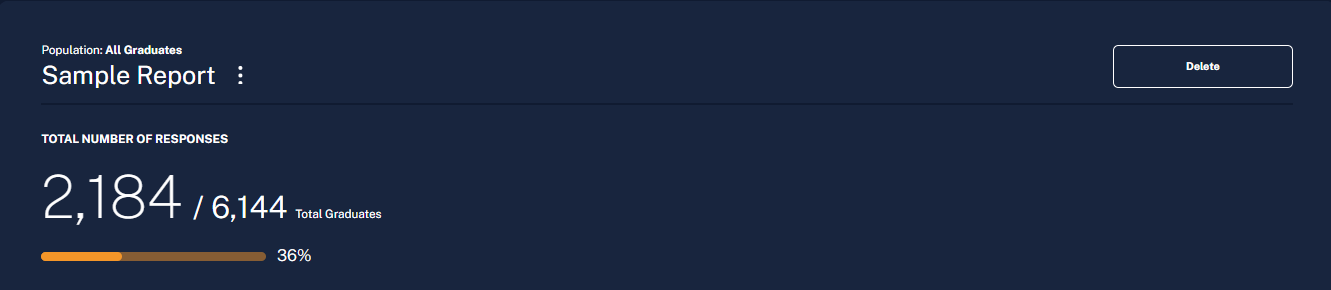
- Total Number of Responses: Shows the number of graduates who answered a specific form question.
- Sum Responses Data: Provides a sum of the responses entered. This is suitable for questions or GDFs with numeric answers and can also be used for ticket reports.
- Data for Specific Responses: Indicates the number of graduates who selected a specific answer to a question, including any Graduate Data Fields for that answer.
- Step 4: Select the question you want to use to build your report.
- Review and Create Report:
- Review your selections from each step on the preview page. Edit if necessary, then select Create Report.
Viewing a Custom Report
- Select the Ceremony:
- Choose the ceremony the custom report was built for from the "Custom Reports for Ceremony" dropdown menu.
- Access the Report:
- Custom Reports are listed with the newest reports at the bottom of the page. Select the desired report to view it.