Only Black/Green Screen Visible Instead of Lower Third
Distorted Lower Third
Lower Third Not Showing on Begin Ceremony Display
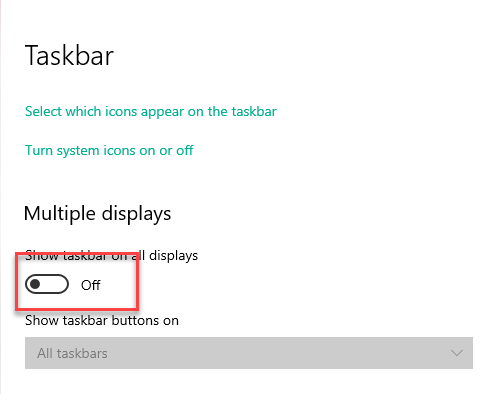
Remove the Taskbar from Multiple Displays
- Right-click on the desktop and select display settings.
- Select Display 2.
- Set "Scale and layout" to 100% (not 125%).
Distorted Lower Third
- Right-click on the desktop and select display settings.
- Ensure the display resolution matches preferences previously given to your client success manager (e.g., 1920 x 1080 or 1280 x 720).
Lower Third Not Showing on Begin Ceremony Display
- Ensure the external display is set to extend, not duplicate.
- Right-click on the desktop and select display settings.
- Under "Multiple displays," select "Extend desktop display."
- If the external display is not detected, select "detect display." If still not recognized, continue AV troubleshooting (swap HDMI cables, check connections, etc.).
Remove the Taskbar from Multiple Displays
- To ensure the task bar does not show during your live ceremony, while streaming to a virtual audience, or while a slideshow is being run, disabling the task bar for all extended displays is necessary.