
Within the
Communications module, you can send emails directly to graduates that appear in a customized filter view. To begin, login to your Hub at app.tassel.com
To send an email to the graduates that appear in a customized filter view, follow these steps:
To send an email to the graduates that appear in a customized filter view, follow these steps:
- Prepare your Email Template in the Communications module.
- Prepare your custom view by following the steps in the Creating a Custom View training guide.
- Open the Communications module. It will show the first tab: Send Email.
- Click the blue Custom Filters button next to the Standard Filters dropdown.
- Now you will see two dropdown menu options: School Wide Filters and Ceremony Filters. (For School Wide Filters, choose your View from the dropdown and skip to Step 7.)
- To send an email to a ceremony-specific group, first select the applicable ceremony from the Recipient Ceremonies section. A green checkmark box will indicate a selection.
- Next, click Ceremony Filters and choose the graduate view that includes the population you would like to email. Note: Only one ceremony-specific filter can be loaded at a time.
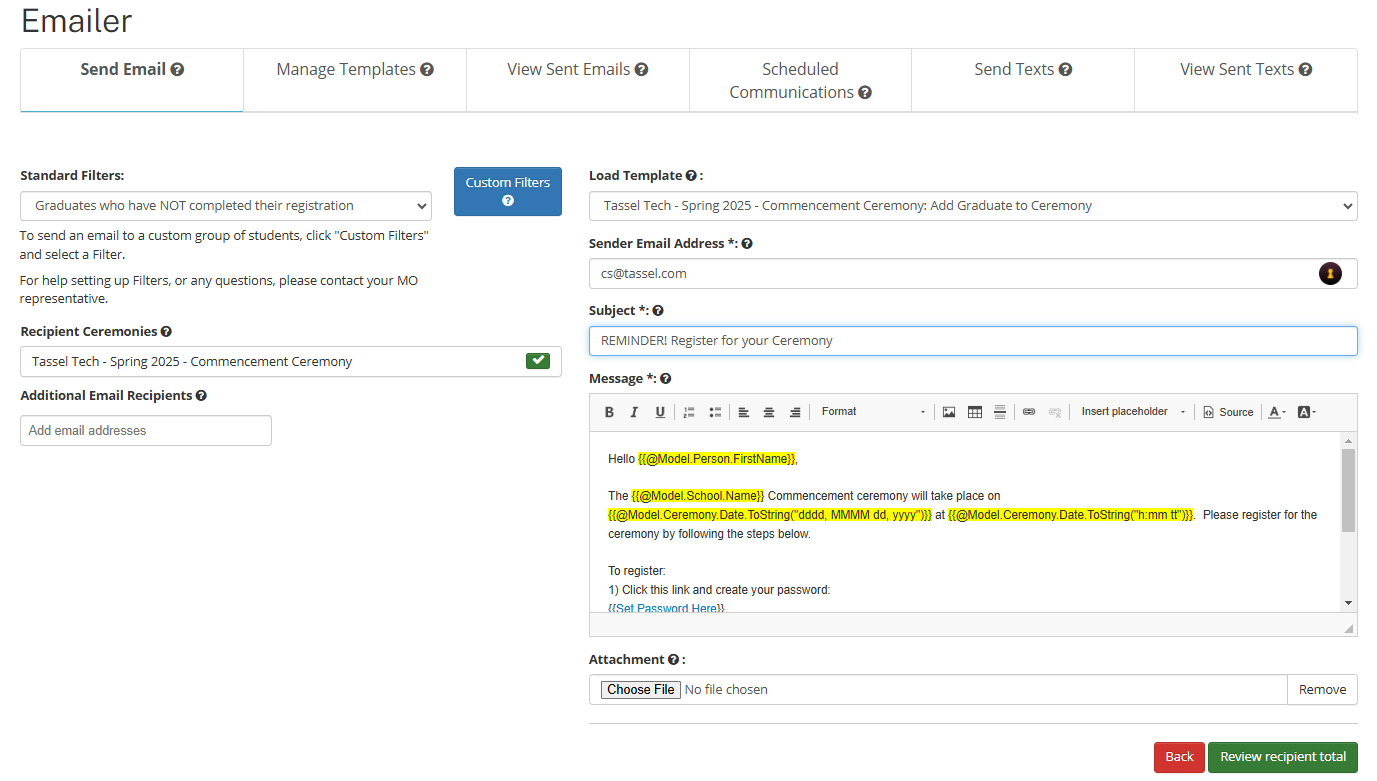
- Click Load Template to select the email template you wish to send. Once loaded, you can make additional edits before sending. Note: These changes will not be saved in the original templates. Alternatively, you can create a new email from scratch.
- When you’re ready to send, click the green Review recipient total button. This will open a confirmation window. If everything is correct, click OK to send your email.